
November 11, 2026 · By Ranjith Kumar S, CRM Implementation Consultant, Unleash Tech Worx
WhatsApp conversations help your business respond to enquiries, share updates, and stay connected with customers. When messages remain on individual phones, important context can be missed and follow-ups become harder to coordinate. Connecting WhatsApp to HubSpot brings supported conversations into a shared workspace and links them to matched contacts, helping your team manage communication with a clearer view of each relationship.
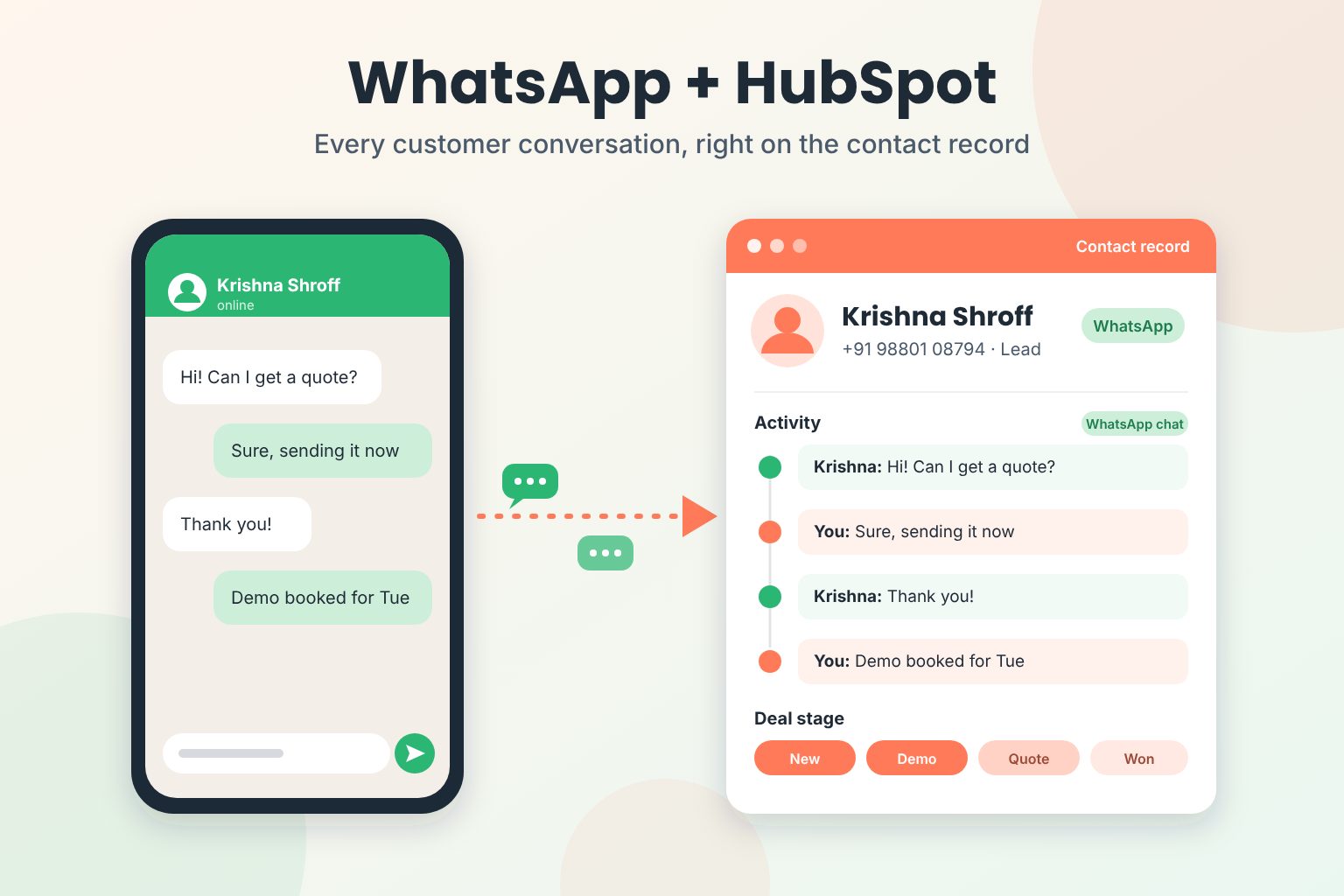
This guide walks you through the two main connection methods, the preparation your accounts need, a numbered setup checklist, and the operational details that trip teams up after go-live.
Key Takeaways: Connecting WhatsApp to HubSpot
- HubSpot's native WhatsApp channel works inside the conversations inbox and requires Marketing Hub or Service Hub Professional or Enterprise.
- Marketplace integrations can add specific capabilities; verify each app’s sync, automation, and subscription handling before choosing one.
- Coexistence mode lets you keep the WhatsApp Business App and HubSpot running on the same number simultaneously.
- Unleash Tech Worx helps businesses configure WhatsApp channels, clean phone data, and build follow-up workflows during HubSpot implementation.
- Store phone numbers in E.164 format and standardize existing records before connecting WhatsApp to improve contact matching and reduce manual reconciliation.
Why WhatsApp Conversations Belong in Your CRM
WhatsApp is where many of your customers already prefer to talk. Prospects message after seeing an ad, buyers ask for a quote, and customers send support queries instead of emailing or filling out a web form.
When those conversations stay outside HubSpot, your team loses four things that matter to revenue operations:
- History: When a rep leaves, the team may lose access to that conversation history.
- Attribution: You cannot tell which campaign or channel produced the lead.
- Speed: Nobody knows who owns a message, so replies get delayed.
- Reporting: WhatsApp activity never shows up against contacts, deals, or tickets.
Bringing WhatsApp into HubSpot's shared inbox helps your team share history and manage ownership. Configure attribution, workflow follow-ups, and reporting separately; the connection alone does not establish them.
Practical WhatsApp and HubSpot Use Cases
Choose a use case with a clear owner, an appropriate message template, and a measurable next action. Start with these scenarios:
- Inbound enquiries: Assign quote or demo requests to an accountable team and keep the conversation associated with the correct contact.
- Appointment reminders: Use an approved template and a supported workflow to remind opted-in contacts about scheduled meetings. Exclude cancellations and completed appointments.
- Order and service updates: Send relevant status updates when reliable source data is available through properties or an integration. Verify the applicable subscription and template category.
- Support follow-up: Route incoming queries to the appropriate team, preserve context, and confirm the next action. Help Desk and ticket behavior depend on the configuration.
- Language preferences: Use an appropriate approved template language and route enquiries to responders who can support it. Do not assume automatic translation.
For every scenario, test contact matching, permitted messaging, ownership, and suppression before enabling customer-facing automation.
How to Choose Your Connection Method
Two main paths: HubSpot's native WhatsApp channel, or a WhatsApp Business API provider (BSP) that connects through the HubSpot Marketplace. Evaluate each connection against your required logging, consent, and workflow behavior.
HubSpot Native WhatsApp Channel
HubSpot lets you connect a WhatsApp Business account as a channel in the conversations inbox. Incoming messages create threads in the inbox, and your team replies from there. Template messaging through workflows requires an eligible Marketing Hub or Service Hub Professional or Enterprise subscription.
The native channel supports shared conversations and approved template messages through workflows. Evaluate your routing, automation, and number requirements before assuming a separate provider is necessary.
WhatsApp Business API Provider (Marketplace Integration)
A Meta-approved BSP gives you access to the WhatsApp Business Platform and typically offers a HubSpot app that syncs contacts, conversations, and message status into the CRM. Providers commonly add bulk campaigns, chatbot flows, and multi-number routing.
Features and sync depth vary significantly between providers. Check exactly which HubSpot objects sync (contacts, timeline activity, deals, tickets), whether sync runs one-way or two-way, and whether the provider supports workflow actions inside HubSpot.
Comparison Table: Native Channel vs. Provider Integration
| Decision criterion | HubSpot native channel | Marketplace integration |
|---|---|---|
| Agent workspace | Conversations inbox or Help Desk, according to the connected destination. | The app's supported workspace; confirm whether agents reply in HubSpot, the provider platform, or both. |
| Workflow template messaging | Supported with an eligible subscription, approved templates, a valid recipient number, and opt-in. | Confirm that the selected app supplies the workflow actions and message-status feedback you need. |
| Contact logging | Incoming conversations associate with matched contacts; unmatched senders need review. | Confirm matching rules, logged content, supported objects, and sync direction. |
| Business app coexistence | Available through the supported coexistence connection; confirm eligibility before connecting. | Confirm the app's number-registration, coexistence, and migration requirements. |
| Subscription and usage | Marketing Hub or Service Hub Professional or Enterprise; check template-message allowance and applicable charges. | Check app requirements, provider fees, and applicable message charges separately. |
| Additional capabilities | Evaluate supported routing, automation, and number requirements against your scenario. | Choose an app only after testing the additional capability and its CRM synchronization. |
Decision guide: Start by checking whether the native channel meets your conversation and workflow needs. Consider a Marketplace integration when you have verified requirements it adds. Test its contact matching, subscription handling, sync depth, and number-migration process before committing.
What to Prepare Before You Connect
Requirements vary by connection method. Preparing these before you connect reduces setup errors and matching problems.
- WhatsApp Business account: Personal WhatsApp accounts cannot connect to HubSpot. Convert to a Business account first.
- Meta Business Manager admin access: You need admin permissions on the Meta Business portfolio that owns your WhatsApp Business account.
- A dedicated phone number: The number must be able to receive a verification code by SMS or voice call. Check its existing registration and whether it qualifies for the supported coexistence path.
- Business details: Your company's legal name, WhatsApp display name, website URL, and business email address.
- HubSpot subscription check: The native channel requires Marketing Hub or Service Hub at Professional or Enterprise level. Sales Hub alone is not listed as eligible for the native WhatsApp channel.
If a team already uses the number on the WhatsApp Business App, coexistence mode lets you keep both platforms running on the same number. Without coexistence, messages move entirely into the HubSpot inbox. Decide which path your team needs before starting setup.
How to Connect the Native WhatsApp Channel: Setup Checklist
Confirm your HubSpot implementation is on a supported edition, then follow these steps.
- Confirm edition and permissions. Marketing Hub or Service Hub, Professional or Enterprise. For the coexistence connection, a HubSpot Super Admin and Meta business administrator access are required.
- Prepare the phone number. Confirm the number can complete the verification required by your selected connection path. Decide on coexistence mode if the number is already in the WhatsApp Business App.
- Gather business details. Legal name, WhatsApp display name, website URL, and business email for Meta verification.
- Open channel settings. For coexistence, go to Settings → WhatsApp → Connect WhatsApp number. Follow the appropriate channel connection instructions if you are not using coexistence.
- Authenticate with Meta. Complete the Meta login and account selection. For coexistence, follow the QR-code instructions in the WhatsApp Business app.
- Assign to an inbox. Choose the available inbox or Help Desk destination appropriate to your connection and team.
- Set routing and ownership. Configure the default assignee, routing rules, and business hours. Create a custom WhatsApp view.
- Submit message templates. Business-initiated messages outside the service window require Meta-approved templates. Create and submit the ones you need.
- Test end to end. Message the connected number from a personal device, confirm the thread appears, reply, and check the contact record. Then send a template from the inbox.
- Add workflow actions. Trigger WhatsApp template messages from HubSpot workflows for confirmations, follow-ups, or deal-stage changes.
How to Configure Routing, Templates, and Workflows
Connecting the channel is the start. Configuration determines whether your team actually uses it consistently.
Routing and Ownership
Configure the routing supported by your chosen inbox or Help Desk and subscription. Define accountable responders, fallback ownership, and after-hours handling. Test assignments rather than assuming every advanced routing option is available.
Message Templates
Supported templates created in your WhatsApp Business Account Manager sync to HubSpot. Templates using location headers or flow buttons do not sync. You can personalize them using contact and company properties. Meta classifies templates as marketing, utility, or authentication. Classification affects approval and cost, so categorize honestly. See HubSpot's template management guide for details.
Workflow Automation
With an eligible subscription, add a "Send WhatsApp message" action to supported workflows. Common triggers include meeting bookings, deal-stage changes, form submissions, and stalled-deal re-engagement. Every workflow-triggered message must use an approved template published for automation. Populate the default WhatsApp Phone Number property with a valid number, verify opt-in, and use a sending number from the same WhatsApp Business account as the template.
How to Match Contacts and Reduce Duplicate Records
WhatsApp identifies people by phone number. HubSpot has traditionally treated email as the primary contact identifier. A WhatsApp lead often has no email address yet. That mismatch is how duplicates start.
Phone Number Formatting
Store phone numbers consistently in E.164 international format: a plus sign followed by the country calling code and subscriber number. Avoid mixing domestic prefixes, international dialing prefixes, and incomplete local numbers. Validate the format rather than adding a prefix blindly.
Standardize existing phone data before connecting WhatsApp. Consistent number formatting helps HubSpot match incoming senders to existing contacts; it does not guarantee deduplication. For migrations from Salesforce, Zoho, or spreadsheets, this is exactly why Unleash Tech Worx recommends cleaning data before connecting any messaging channel.
How HubSpot Matches Incoming Messages
HubSpot checks the sender's phone number against the Phone number and Mobile phone number properties on existing contacts. An exact match associates the conversation to that contact. If no match is found, the conversation appears as an unknown visitor that you can manually associate. Based on current documentation, HubSpot does not automatically create a new contact for an unmatched WhatsApp message.
Preventing Duplicates
Set a weekly duplicate review routine during the first month after connecting WhatsApp. Merge confirmed duplicates promptly. Capture the contact's email address as early as possible in the conversation, since email can help reconcile identities when collected appropriately. Use clear contact properties to mark opt-in status and preferred communication channel.
Consent, Opt-Outs, and Messaging Costs
Two sets of rules apply to WhatsApp messaging: Meta's platform policies and your local data protection laws. This section covers the operational requirements. It is not legal advice. Have your legal team review consent wording, retention, and cross-border data transfer.
Meta's Messaging Rules
Opt-in is required before you send business-initiated messages. Record how and when each contact agreed. When a customer messages you, a 24-hour service window opens. During that window, you can reply with free-form messages. Each new message from the customer resets the 24-hour timer. Your replies do not extend it.
After the service window closes, use an approved template message to reinitiate contact. Sending the template does not itself reopen the free-form messaging window; the contact must reply. Verify the applicable template category and current charging terms before budgeting. Avoid assuming every message has the same cost or that provider fees are included in HubSpot usage allowances.
Monthly Template Message Allowance
HubSpot documents a shared monthly allowance of 1,000 template messages across connected WhatsApp Business accounts. This is a template-message allowance, not a conversation allowance. Verify the current allowance and any additional charges for your account before launch.
Handling Opt-Outs
HubSpot supports keyword-based WhatsApp opt-out when the message contains only a recognized keyword, such as STOP. Additional words may prevent keyword detection. Verify the resulting native subscription status and ensure workflows respect it; a custom consent property alone is not sufficient.
Add a clear WhatsApp opt-in checkbox to your HubSpot forms. HubSpot distinguishes WhatsApp Marketing and WhatsApp Transactional subscriptions. A Marketing opt-out button affects the Marketing subscription; do not assume STOP and every opt-out method have identical scope. Send only messages allowed by the recorded subscription status and applicable rules.
Data Protection
Applicable law depends on factors including your organization, your customers, and where processing occurs. Have qualified counsel review consent, permitted purposes, retention, and cross-border transfers for your situation.
How to Test WhatsApp Before a Full Launch
A failed connection or misrouted message on day one erodes team trust in the channel. Run these checks before going live.
- Verify the connection: Message the connected number from a personal device. Confirm the thread appears in the correct inbox.
- Test contact matching: Use a number already in your CRM. Confirm it associates to the right contact record.
- Test an unmatched number: Send from a number not in your CRM. Confirm it appears as an unknown visitor you can manually associate.
- Send a template message: From the inbox, send an approved template to a test contact. Verify delivery and personalization tokens.
- Test the 24-hour window: Reply with free-form text inside the service window. After the window closes, confirm only templates can be sent.
- Test workflow triggers: Enroll a test contact in a workflow with a WhatsApp action. Confirm the template sends at the right step.
- Test opt-out handling: Reply "STOP" from a test number. Confirm the native WhatsApp subscription status updates and subsequent sends respect the recorded opt-out. A custom property change alone is not sufficient.
- Check coexistence: If using coexistence, confirm messages appear in both the WhatsApp Business App and HubSpot. Check the supported history import of up to 180 days; historical media appears as placeholders. Do not assume a non-coexistence connection imports history.
Document each test result. Fix failures before rolling out to the full team. A portal audit before launch helps confirm that routing rules, properties, and permissions are production-ready.
Plan Your WhatsApp and HubSpot Launch
Choosing between native and provider setups, cleaning your phone data, and getting templates approved takes more planning than the connection itself. Skip the groundwork and you end up with duplicated contacts, unrouted messages, and compliance gaps.
At Unleash Tech Worx, we help businesses implement HubSpot with WhatsApp setup, data cleanup, workflows, and reporting included. If you want your WhatsApp channel configured correctly from day one, Get WhatsApp + HubSpot set up.
Want this handled, not just explained?